Don't Settle: 5 Galaxy Settings to Unlock Your Phone's Hidden Power
Your new Samsung Galaxy hides its true potential behind conservative default settings. A few essential tweaks to navigation, power, display, audio, and notifications will deliver a vastly superior experience.
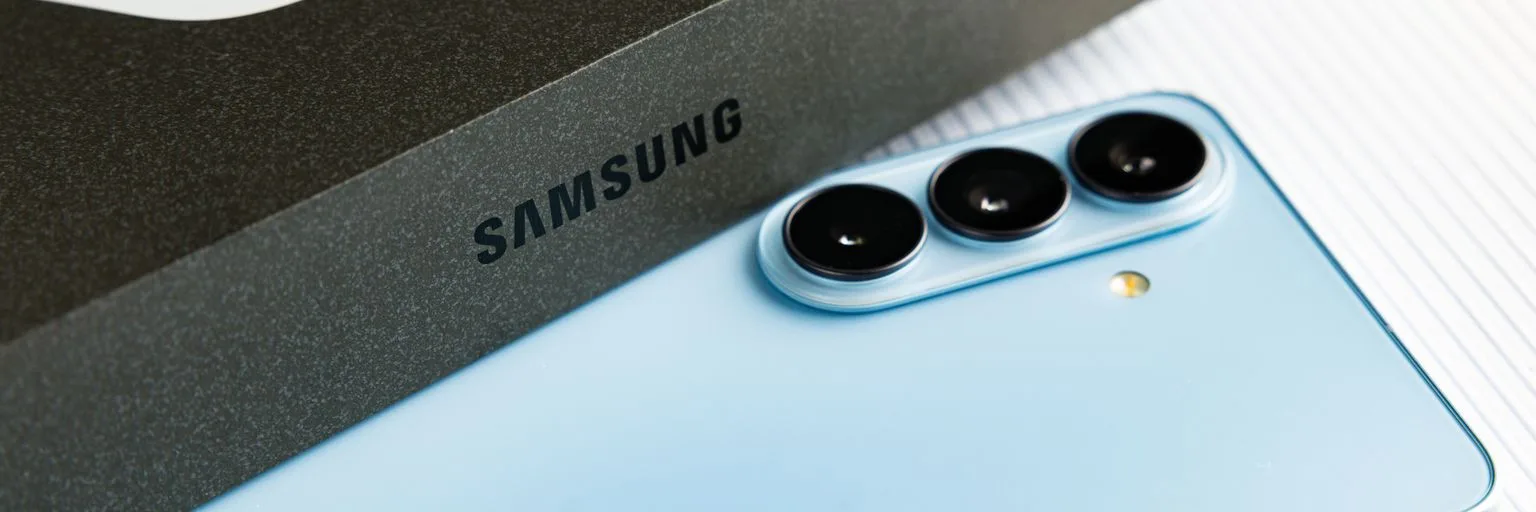
Photo: webtekno / Wikimedia Commons (CC BY 3.0)
Unboxing a new Samsung Galaxy smartphone is exciting, but many users unknowingly leave a significant part of its power untapped. While Samsung's One UI has evolved into a sleek and intuitive interface, several powerful features remain dormant or configured in ways that don't serve the user best. The default settings are often a compromise—perhaps for battery life or broad compatibility—but they prevent you from truly leveraging your device's capabilities. Why settle for a good phone when a few adjustments can make it a great one?
This isn't about minor cosmetic changes; it's about transforming your daily interactions. From smoother navigation to a richer sound profile and a more informative display, taking a few minutes to customize your Galaxy can profoundly enhance your experience. It's time to take control and make that new Galaxy truly yours, not just a factory-set device.
Reclaim Your Navigation with Gestures
One of the most impactful changes for a modern smartphone experience is swapping the old three-button navigation for fluid gestures. Samsung Galaxy phones often default to traditional buttons, consuming valuable screen real estate and feeling less intuitive than the gesture system Android introduced years ago. This oversight is puzzling, as gestures offer a sleek, full-screen interaction that truly shines on large displays.
Switching to swipe gestures is simple: navigate to Settings > Display > Navigation bar, then select Swipe gestures. This immediately opens up the bottom of your screen, making your device feel more expansive and modern. For those who embrace the gesture paradigm, moving between apps and returning to the home screen becomes a seamless, natural motion. On supported models, you can also enable Google's Circle to Search feature from this menu for even more intuitive interaction.
Command Your Side Button, Ditch the Assistant
Pressing and holding the power key, or side button, should lead directly to the power menu—allowing you to easily restart or shut down your device. However, on many Galaxy phones, this action defaults to summoning Samsung's Bixby or Google's Gemini assistant. While digital assistants are useful, quick access to power options is a more fundamental function. Hunting for the power icon in quick settings is an unnecessary annoyance that can be easily fixed.
To restore common sense to your side button, head to Settings > Advanced features > Side button and change the Press and hold action to Power off menu. This puts control back into your hands. This same menu also lets you customize the double-press action, which often launches the camera by default. Consider assigning it to another frequently used app for instant access, dramatically enhancing convenience.
Unlock Your Display's Full Visual Fidelity
Many high-end Samsung Galaxy phones ship with their display resolution set to 1080p (Full HD) by default, even when they boast Quad High Definition+ (QHD+) panels. Investing in a premium device only to underutilize its most visually impactful component feels almost criminal. While this conservative default might aim to conserve battery, we argue the visual upgrade is often worth the potential trade-off.
To truly appreciate your Galaxy's vibrant display, navigate to Settings > Display > Screen resolution and select the highest available option, typically QHD+. Test it for a day to see the significant difference in clarity and crispness, especially with text and high-resolution media. While a slight increase in battery consumption is possible, for many, the enhanced visual experience is a clear winner. You can also fine-tune Screen zoom and Font size in the same Display settings to maximize on-screen content or improve readability.
Elevate Your Audio Experience from the Start
If you're still listening to music or watching videos with the factory default audio settings on your Galaxy, you're missing a significant part of its capabilities. Samsung's One UI, while excellent, often keeps advanced audio options deactivated, underutilizing the phone's sound hardware. For a truly immersive experience, a few adjustments are mandatory.
Start by activating Dolby Atmos in Settings > Sounds and vibrations > Quality and sound effects as documented by lacremedugaming.fr. This technology creates a more expansive and precise soundstage, ideal for films, games, and streaming music. You can switch between Auto, Music, or Film modes depending on your content. While there, explore the Equalizer to customize the sound profile with presets like Pop or Rock, or adjust frequencies manually. Additionally, Sound Level Normalization is a hidden gem that prevents jarring volume spikes between tracks or videos.
For even more versatility, Separate app sound allows you to direct audio from a specific app to a different output device, such as playing navigation instructions through your phone's speaker while music streams to your car's Bluetooth as explained by Samsung. This granular control offers a personalized audio setup for various scenarios.
Mastering Notifications for Privacy and Clarity
By default, notifications on Samsung Galaxy lock screens appear as icons in the top left corner. While this offers basic privacy, it requires a simple swipe down to view full details. For incoming alerts, the default pop-up notification style often appears as a tiny banner, which can be annoying to read or access quickly according to Wired. Striking the right balance between convenience and privacy is key.
For a more informative lock screen, head to Settings > Notifications > Lock screen notifications and select Cards. You can then combine this with the Show content or Hide content toggle to balance detail with privacy. For incoming alerts, we recommend changing the Notification pop-up style to Detailed from Settings > Notifications to ensure banners are larger and easier to read, much like on other Android devices. Dive into Advanced settings within Notifications to enable Notification history—a lifesaver for those accidental swipes—and the snooze button for managing alerts later. These thoughtful tweaks transform how you interact with incoming information, making it more efficient and less intrusive.
In conclusion, your new Samsung Galaxy is an impressive piece of hardware, but its true potential often lies hidden behind conservative default settings. By taking a few minutes to adjust navigation gestures, reconfigure the side button, maximize display resolution, fine-tune audio, and optimize notifications, you're not just changing settings; you're personalizing your device to better serve your needs and preferences. These small adjustments collectively deliver a substantially enhanced, more enjoyable, and truly optimized smartphone experience from day one.
No topics yet: start the first one.
More stories
Samsung Wallet's USDC Move: A Quiet Revolution in Global Payments
By embedding USDC transfers directly into 82 million US Galaxy phones, Samsung isn't just adopting stablecoins; it's poised to fundamentally alter cross-border transactions and pressure the entire mobile payment ecosystem.

Samsung's Foldable Blitz: Is the Galaxy Z Fold 8 the Tipping Point?
With the Galaxy Z Fold 8 lineup's July debut and aggressive promotions, Samsung is making a clear statement: foldables are here to stay, and the company intends to lead the charge, broadening their appeal beyond early adopters.
Samsung's Mid-Range Update Strategy: Planned Obsolescence or Practical Support?
Samsung has ended software support for the Galaxy A04s and A23 5G, pushing users toward an upgrade cycle that raises concerns about device longevity and the environmental impact of budget-friendly smartphones.

Samsung's Galaxy S27 Leaks Hint at Smart Refinement, Not Revolution
Early leaks for the Samsung Galaxy S27 series, including memory, storage, battery, and software focus, suggest a strategic move towards perfecting the core experience rather than chasing radical new features in a maturing market.